
How to use Desk Keeper
Desk Keeper tidies the folders that fill up while you work — Downloads, Desktop, Documents and any other folder you choose. This guide shows you how, from your first clean to rules and schedules. It takes about five minutes to read.
Why use it
Every download, screenshot, invoice and installer lands in the same folder. Sorting them by hand means dragging files one at a time, and most people never get round to it. Desk Keeper does that work for you:
- Saves the hunting. Files sit in folders by type and month, so "that photo from September" or "last month's invoice" is where you expect it.
- One click instead of many. A folder with hundreds of loose files is sorted in seconds, after you've checked what will happen.
- Frees up space. Duplicate copies and old setup files can take gigabytes.
- Nothing is lost. You see a preview first, nothing is deleted straight away, and every clean can be undone for 30 days.
- Keeps itself tidy. With a schedule, folders stay in order without you thinking about it. Pro
Everything happens on your PC. Desk Keeper never uploads your file names or their contents.
1. Install Desk Keeper
- Download Desk Keeper and run the file.
- Windows may say "Windows protected your PC". Click More info, then Run anyway. This appears because the installer is new; it installs only for your user account and needs no administrator rights.
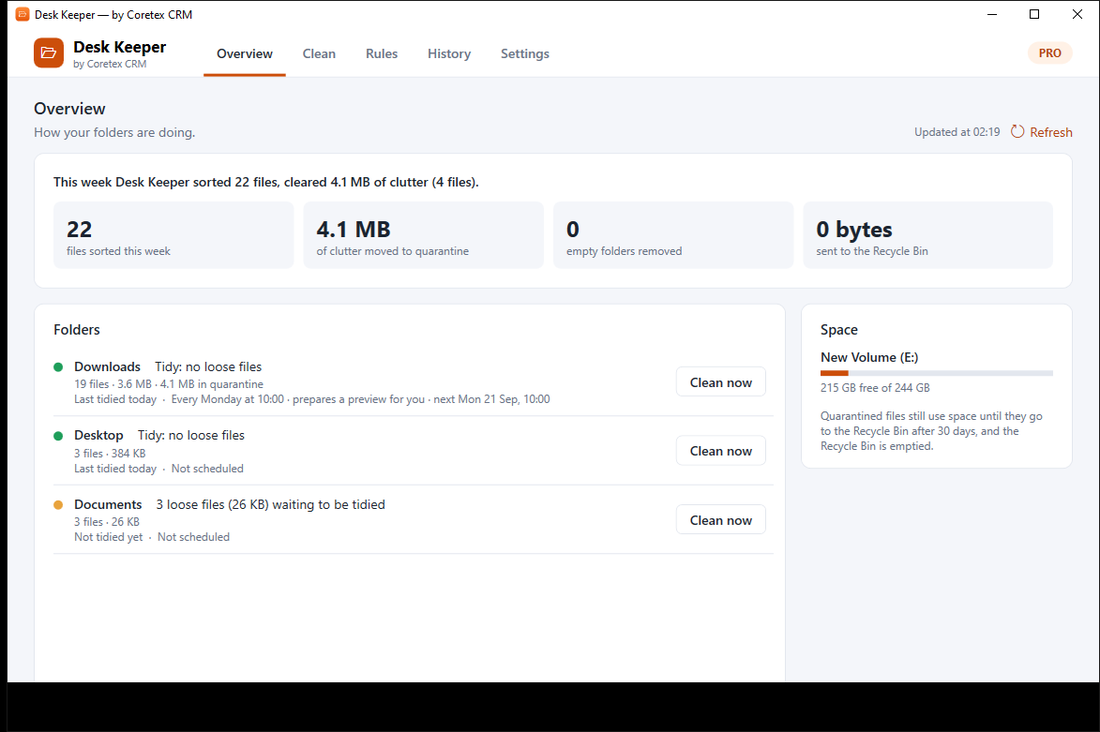
- Desk Keeper opens on the Overview tab, showing how your Downloads, Desktop and Documents folders are doing.
Needs Windows 10 (version 2004 or newer) or Windows 11, 64-bit.
2. Your first clean
Start with Downloads — it's usually the messiest, and it's included in the free plan.
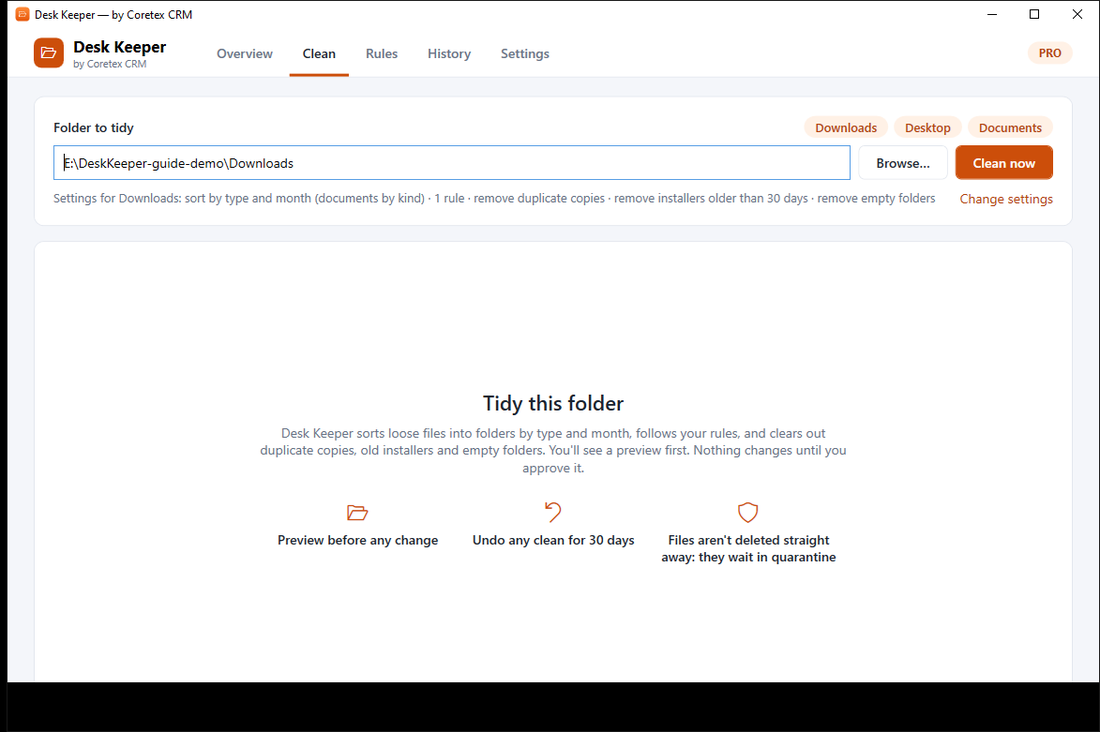
- Open the Clean tab. Downloads is already selected. (You can pick another folder with Browse….)
- Click Clean now. Desk Keeper looks through the folder and shows a preview.
- Read the preview. Every file is listed with where it will go and why. Untick anything you want left alone.
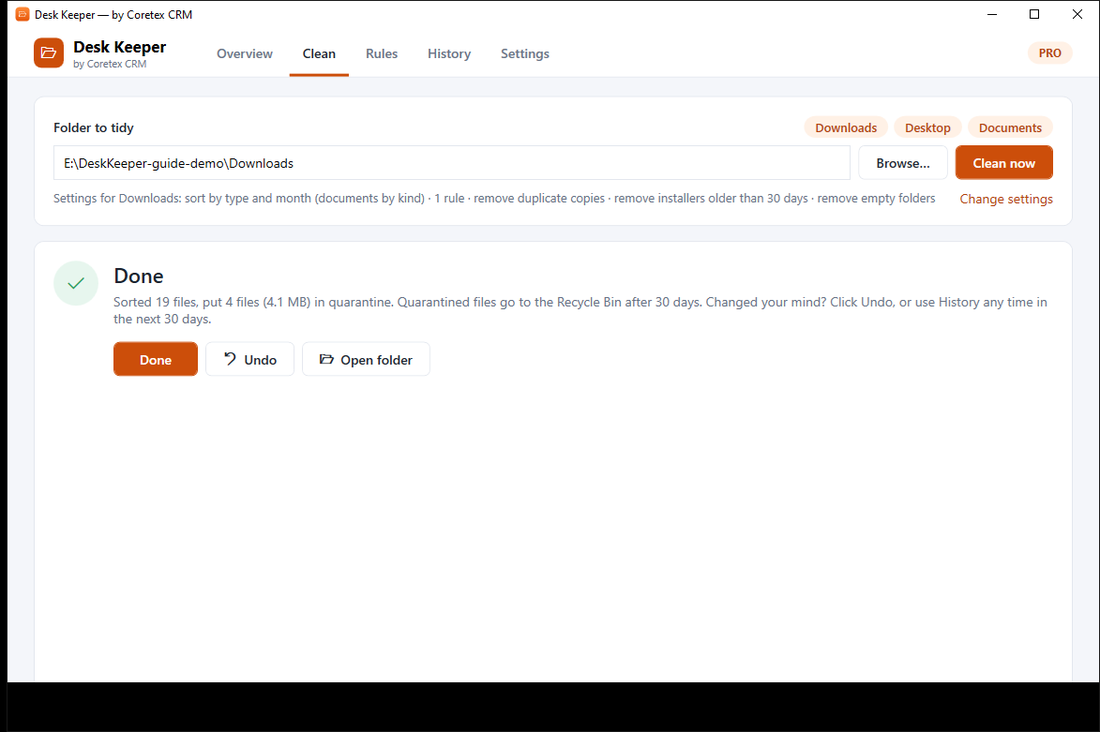
- Click Do it. The files move in seconds.
- Not happy? Click Undo on the result screen, or open History later.
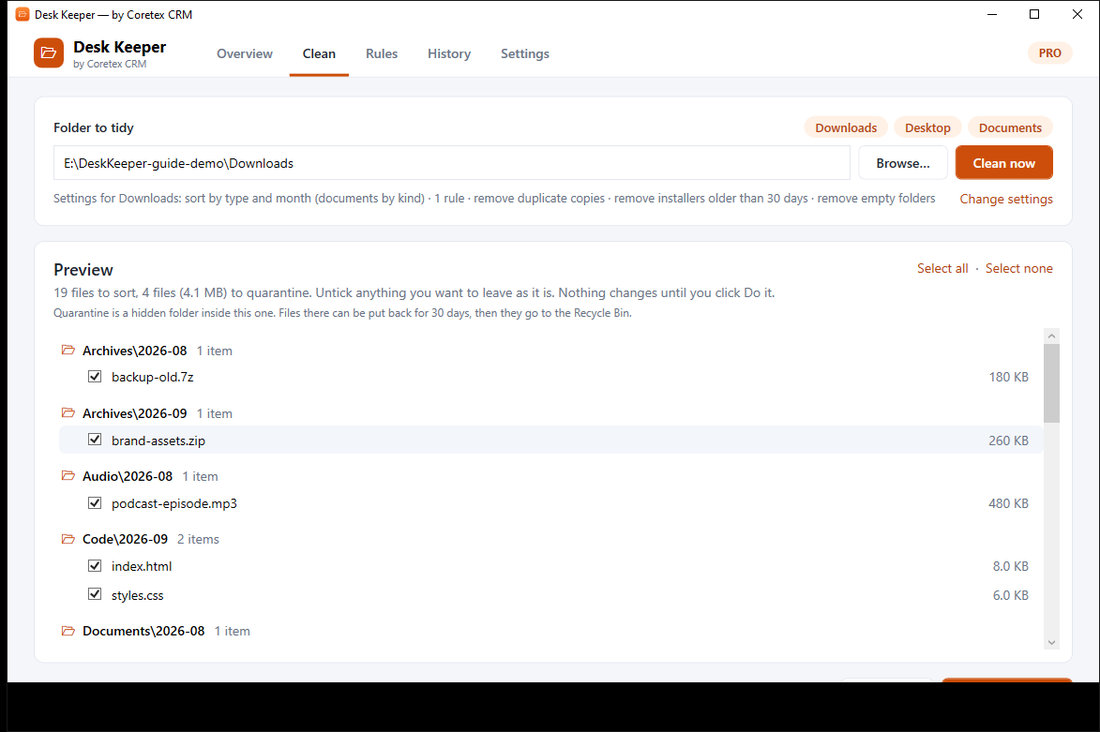
Nothing changes until you click Do it. Closing the preview cancels everything.
3. Where your files go
Loose files in the folder are sorted into a folder for their type, then a folder for the month they were last changed:
Downloads\Images\2026-09\holiday.jpgDownloads\Documents\2026-09\report.pdfDownloads\Installers\2026-08\setup.exeThe type folders are Images, Videos, Audio, Documents, Spreadsheets, Presentations, Archives, Installers, Shortcuts, Code, Design, Fonts, Ebooks, and Other for anything else.
Folders you made yourself are left alone. Desk Keeper only sorts files lying loose in the folder, not files inside your own subfolders.
Documents get their own folders Pro
Desk Keeper can read the first pages of a document — on your PC — to work out what it is, including scanned PDFs and photos of paper. It recognizes invoices, receipts, bank statements, CVs, payslips, tax documents, contracts and tickets:
Documents\Invoices\2026-09\scan0001.pdfDocuments\Payslips\2026-09\salary-sep.pdfWhen it isn't sure, the file is simply sorted by type. You can switch this off per folder under Rules → Sort.
4. Clearing out clutter Pro
On the Rules tab, each folder has a Clean up section with three switches:
- Remove duplicate copies. Files with exactly the same contents, like
invoice (1).pdfandinvoice (2).pdf. One copy is always kept, and copies inside folders you organized yourself are never touched. - Remove old installers. Setup files (
.exe,.msi) older than the number of days you choose, 30 by default. Programs you already installed aren't affected — only the setup files. - Remove empty folders. Folders that have been completely empty for a week.
Nothing is deleted straight away
Files that are cleared out move to a hidden quarantine folder inside the folder you cleaned. They stay there for 30 days, so you can put them back at any time. After 30 days Desk Keeper moves them to the Windows Recycle Bin, where you still get one more chance. (On USB and other removable drives, which have no Recycle Bin, they stay in quarantine until you delete them yourself.)
5. Your own rules Pro
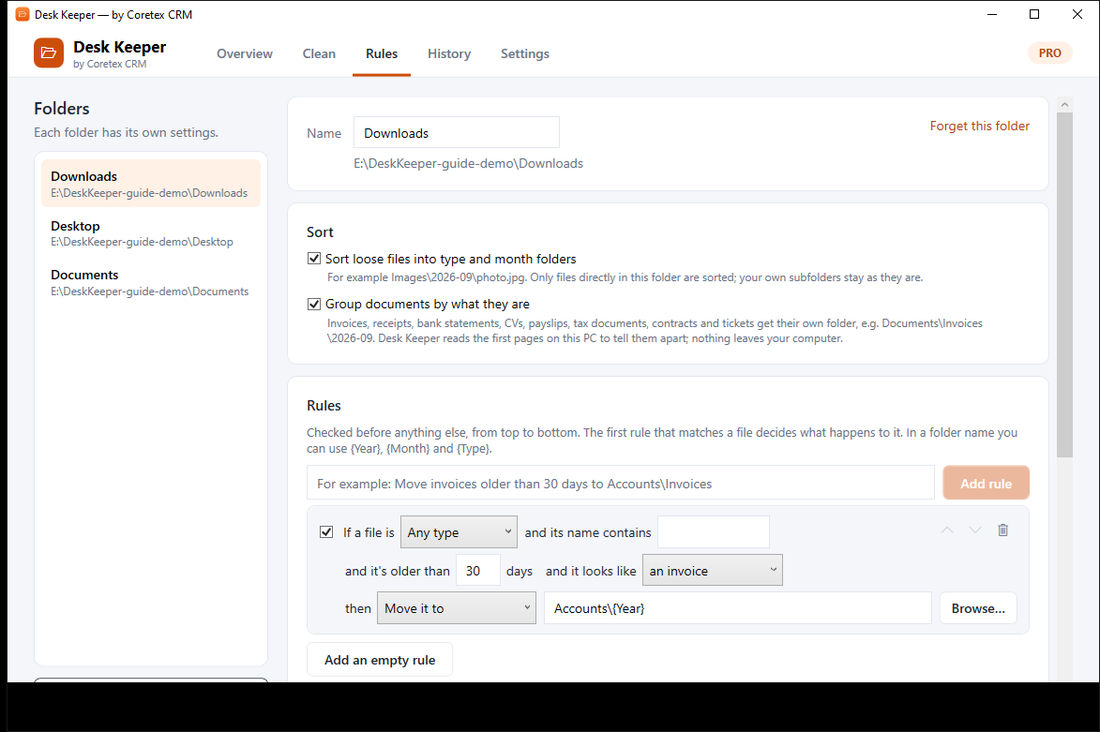
Rules decide what happens to files before the normal sorting. Open Rules, pick a folder, and type what you want in plain English:
Move invoices older than 30 days to Accounts→Invoices older than 30 days move to an Accounts folderPut screenshots into Screenshots\{Year}→Files with "screenshot" in the name go to Screenshots\2026Leave shortcuts alone→Shortcut files stay where they areRemove installers older than 2 months→Old setup files go to quarantineDesk Keeper shows you the rule it understood, and you can change any part of it by hand: file type, words in the name, how old the file is, or the kind of document. In folder names you can use {Type}, {Year} and {Month}.
Rules are checked from top to bottom, and the first one that matches a file decides what happens to it. Use the up and down arrows next to a rule to put them in the order you want.
It learns from you
If you move three or more similar files by hand — say three payslips into an HR folder — Desk Keeper notices and offers to make it a rule. You'll see the suggestion after the next clean, with Add rule and No thanks buttons. It never creates a rule on its own.
6. Let it tidy by itself Pro
Under Rules → Schedule you can set each folder to tidy itself:
- As soon as new files arrive: Desk Keeper watches the folder and tidies it about three minutes after the last file lands — long enough to be sure your download has finished.
- Or at a set time: every day, or once a week on the day you pick, at a set hour.
- Prepare a preview for me: Desk Keeper gets the preview ready and lets you know, so you approve before anything moves.
- Tidy automatically: it cleans without asking. You can still undo it from History.
For schedules to run, Desk Keeper needs to be running. Under Settings → Running in the background you can keep it in the system tray when you close the window, and start it when you sign in to Windows. Once a week it can also show a short summary of what it tidied.
7. Undo and History
The History tab lists every clean, newest first: when it ran, which folder, how many files moved and how much space was cleared. Click Undo on any run from the last 30 days and the files go back where they were, including anything that went to quarantine.
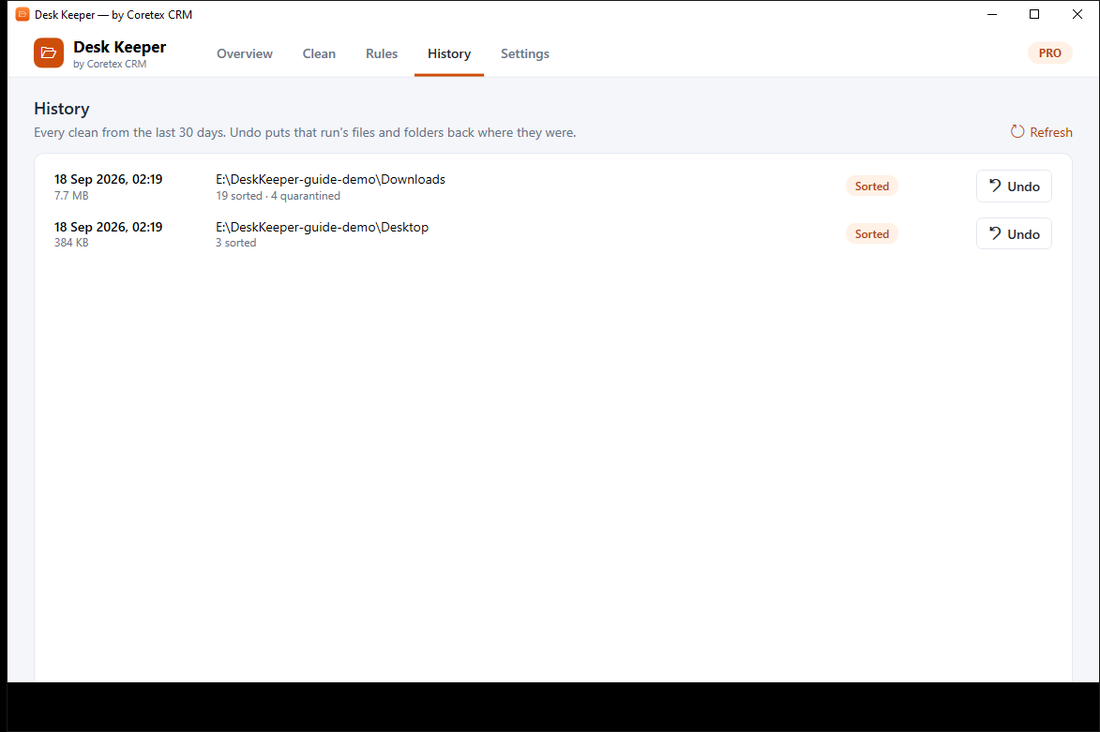
After 30 days a run drops off the list, and its quarantined files go to the Recycle Bin.
8. What Desk Keeper never touches
- Windows folders, program folders and app-data folders.
- Folders that are code projects (anything with a
.gitfolder). - Whole drives — you can't point it at
C:\itself. - Files that another program has open, or that are still downloading.
- Files changed in the last two minutes, in case you're still working on them.
- OneDrive files that are online-only, so it never triggers a download.
If a file is skipped, the preview tells you why.
Desk Keeper is careful, but no tool replaces a backup. Keep important files backed up, as you would anyway.
9. Turning on Pro
The free plan sorts your Downloads folder, with preview and undo, and has no time limit. Desk Keeper Pro (₹999, paid once) adds other folders, your own rules, clearing out clutter, document sorting, suggestions, schedules and the weekly summary.
- Buy Pro. Your license key appears on screen straight after payment and is emailed to you, with a receipt.
- In Desk Keeper, open Settings → License, paste the key and click Activate.
- The header shows PRO, and every folder and feature unlocks.
One key works on up to 3 PCs at the same time. Moving to a new PC? On the old one, click Remove license from this PC first, then activate on the new one. Desk Keeper checks your license about once a week; it keeps working offline in between.
Updates arrive by themselves: Desk Keeper checks once a day, downloads quietly in the background, and installs the next time you start it.
10. If something looks wrong
- A file wasn't moved
- Open the preview and look at the skipped list — it says why: the file is open in another program, still downloading, changed a moment ago, or online-only in OneDrive. Close the program or wait, then clean again.
- I want a file back
- Open History and click Undo on that run. Cleared-out files are in the hidden quarantine folder for 30 days, then in the Recycle Bin.
- It says a folder can't be tidied
- The folder is a Windows, program or app-data folder, a whole drive, or a code project. Choose a normal folder like Downloads, Desktop or Documents.
- Sorting went somewhere I didn't expect
- A rule probably matched the file first. Open Rules, check the order, and change or switch off the rule. Then undo the run and clean again.
- My key won't activate
- Check it's typed exactly as in the email. If it's already on 3 PCs, remove it from one of them first. Still stuck? Email support@coretexcrm.com with the key.
- Where does Desk Keeper keep its own files?
- In
%LOCALAPPDATA%\DeskKeeper: your settings, the undo history, and what it has learned from the files you move. Deleting that folder resets the app; your own files aren't affected.
Ready to tidy up?
Start with your Downloads folder — it's free and takes a minute.
Questions this guide doesn't answer? Contact us — we usually reply within one working day.